
How to Convert PDF to Word Without Losing Formatting
Start with selectable text, compare conversion methods, and check fonts, tables, images, and page layout.
Converting a PDF to a Word document makes it easier to edit text, update information, and reuse existing content. However, the conversion process doesn't always produce a document that looks exactly like the original.
Fonts may change, tables can lose their alignment, and images sometimes move to unexpected positions.
The good news is that many formatting problems can be reduced by understanding how PDF conversion works and following a few practical steps.
In this guide, you'll learn how to convert a PDF to Word, preserve as much of the original formatting as possible, and fix common layout issues.
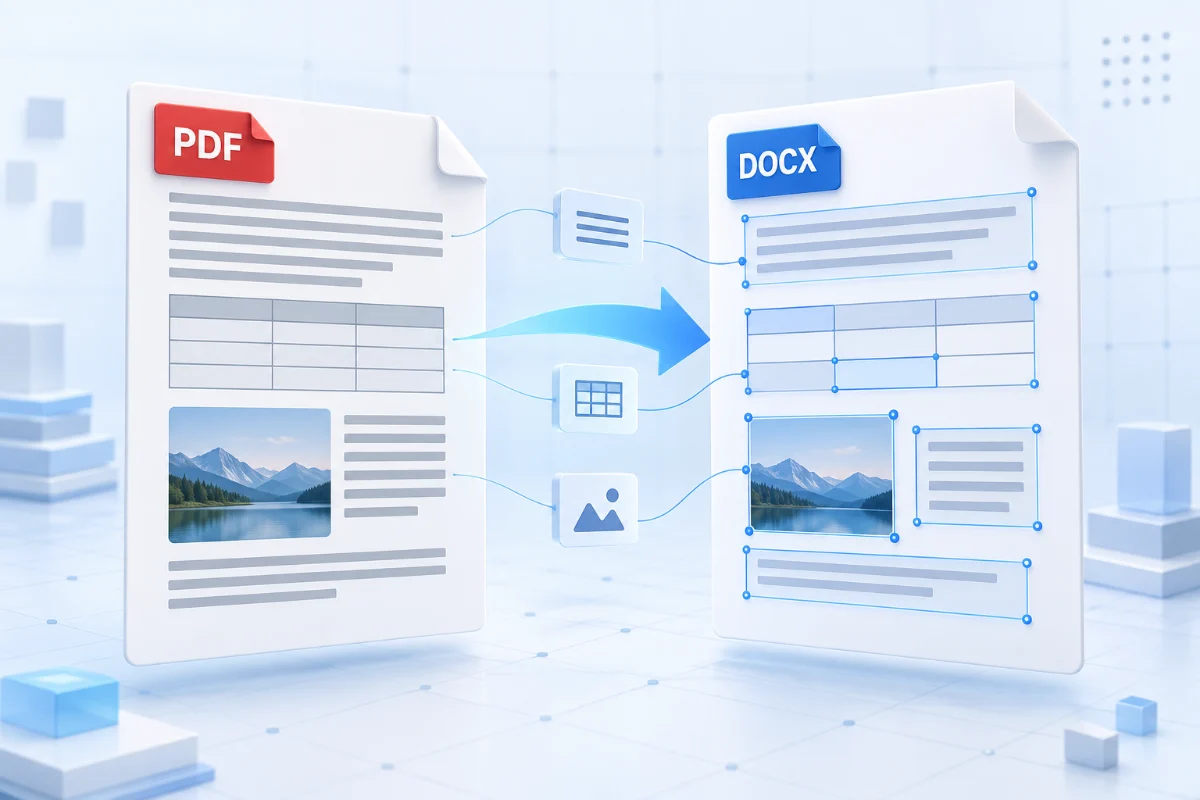
Why Does PDF to Word Conversion Affect Formatting?
PDF and Microsoft Word are designed for different purposes.
PDF files preserve the visual appearance of documents. They are commonly used for sharing reports, contracts, forms, and other documents that should look consistent across devices.
Word documents are designed for editing. They organize content into paragraphs, tables, images, and other editable elements.
When converting a PDF to Word, conversion software must reconstruct these editable elements from the PDF's underlying content.
This reconstruction can be challenging when the original PDF contains:
- Complex tables with merged cells
- Multiple columns or text boxes
- Custom or embedded fonts
- Images positioned alongside text
- Scanned pages without selectable text
- Headers, footers, and page numbers
The more complicated the document layout, the more likely it is that manual adjustments will be needed.
Method 1: Convert PDF to Word Using an Online Converter
An online PDF converter is a convenient option when you want to edit a document without installing additional desktop software.
Step 1: Open a PDF to Word Converter
Visit the PDFreevert PDF to Word tool.
Select the PDF file you want to convert.
For the best results, start with a PDF containing selectable text rather than scanned images.
Step 2: Upload Your PDF File
Choose the PDF document from your device and upload it.
Before proceeding, make sure that:
- The file is not corrupted.
- The PDF opens correctly in a PDF reader.
- The document contains the pages you want to convert.
- You have permission to edit or reuse its contents.
Step 3: Convert the PDF to Word
Start the conversion using the available controls.
The converter will attempt to reconstruct the PDF content into an editable Word document.
Conversion quality depends on the original document's structure, fonts, and layout complexity.
Step 4: Download the Converted Document
When the conversion is complete, download the resulting Word document.
Open it in Microsoft Word or another compatible word processor.
Step 5: Review the Formatting
Compare the converted document with the original PDF.
Pay particular attention to:
- Font styles and sizes
- Paragraph spacing
- Tables and cell alignment
- Image positions
- Page breaks
- Headers and footers
For important documents, review every page before making further changes.
Method 2: Convert PDF to Word Using Microsoft Word
Microsoft Word can also open and convert many PDF files into editable documents.
This method is useful when Microsoft Word is already installed on your computer.
Step 1: Open Microsoft Word
Launch Microsoft Word and select File > Open.
Step 2: Select Your PDF File
Browse to the PDF document you want to convert.
Word may display a message explaining that it will convert the PDF into an editable document.
Step 3: Confirm the Conversion
Allow Word to process the file.
The conversion may take longer for documents with many pages, images, or complex layouts.
Step 4: Save as a Word Document
After opening the converted file, select File > Save As and save it in DOCX format.
Step 5: Check the Results
Review the document and correct any formatting problems.
Microsoft Word generally works better with PDFs that primarily contain text. Complex graphics, scanned pages, and unusual layouts may require additional editing.
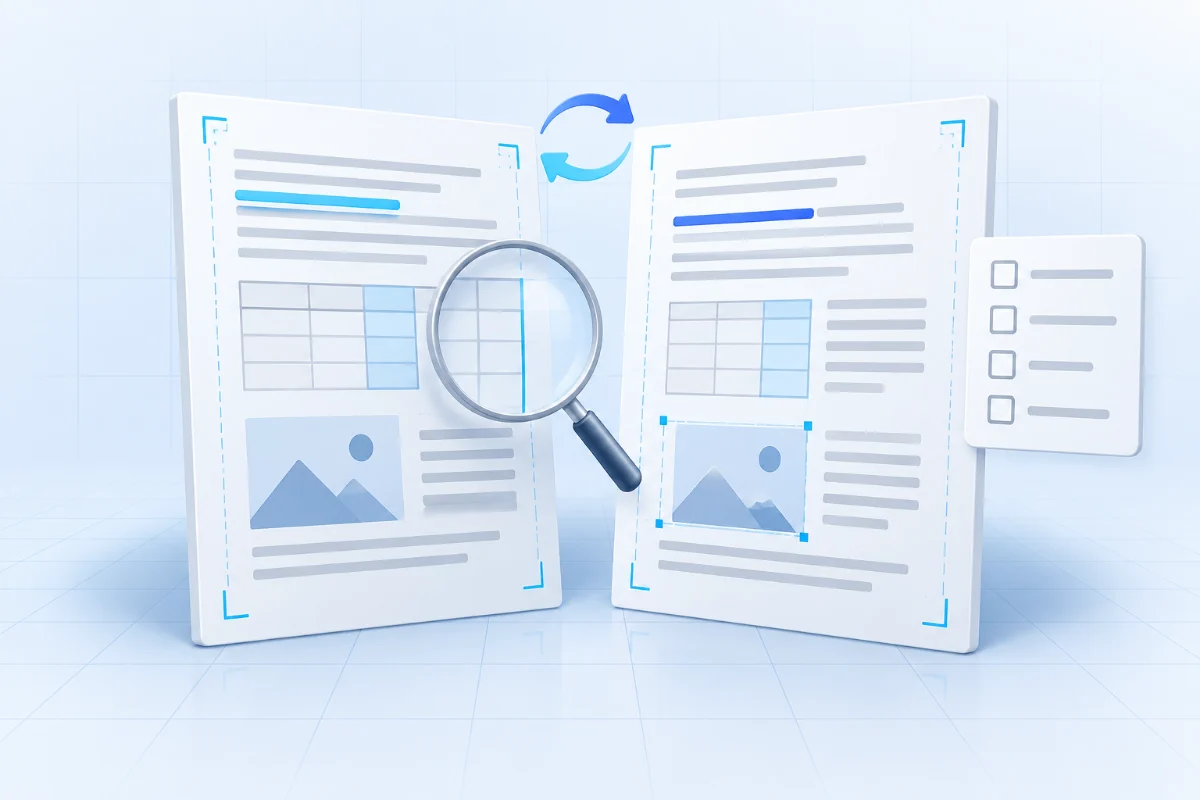
7 Tips to Preserve Formatting When Converting PDF to Word
1. Start with a High-Quality PDF
The quality and structure of the original PDF have a major impact on conversion results.
A PDF exported directly from a word processor often contains more useful text information than a low-resolution scanned document.
Whenever possible, use the original digital PDF rather than a scanned copy.
2. Check Whether the PDF Contains Selectable Text
Open the PDF in a reader and try selecting a sentence.
If you can highlight individual words, the document probably contains a text layer.
If you can only select an entire page as an image, the document may be scanned.
Scanned PDFs usually require Optical Character Recognition (OCR) to recover editable text.
3. Pay Attention to Fonts
Font substitution is a common reason why converted Word documents look different.
If a font used in the PDF is unavailable in Word, another font may be substituted.
This can affect:
- Character spacing
- Line wrapping
- Paragraph height
- Page breaks
- Table alignment
If the document uses specialized fonts, check whether they are available on your computer.
4. Review Tables Carefully
Tables can be difficult to reconstruct accurately because PDFs do not always preserve their original table structure.
After conversion, inspect:
- Column widths
- Row heights
- Merged cells
- Cell borders
- Text alignment
For documents containing complex tables, manual adjustments may be necessary.
5. Watch for Image Position Changes
Images may shift because PDF and Word use different layout systems.
In Word, select an image and review its text-wrapping settings.
Options such as In Line with Text, Square, and Behind Text can affect how an image interacts with surrounding paragraphs.
Choose the option that best matches the original document.
6. Check Page Size and Margins
A mismatch between the original PDF page size and the Word document's page setup can cause unexpected line breaks.
Check the page size, orientation, and margins in Word.
For example, a document originally created on A4 pages may reflow differently if the converted Word file uses Letter-sized pages.
7. Avoid Repeated Conversions
Repeatedly converting between PDF and Word can introduce additional formatting changes.
If possible, convert the document once, make your edits in Word, and export the final result to PDF.
Keep the original PDF as a reference.
Common PDF to Word Formatting Problems and Solutions
| Problem | Possible Cause | Suggested Solution |
|---|---|---|
| Fonts look different | Missing or substituted fonts | Install or select a compatible font |
| Tables are misaligned | Complex table structure | Adjust column widths and merged cells |
| Images have moved | Different object positioning | Change image wrapping settings |
| Text is split into lines | PDF text reconstruction | Combine paragraphs manually |
| Extra blank pages appear | Changed page breaks or margins | Review page layout settings |
| Text cannot be edited | Scanned PDF without OCR | Use an OCR-capable workflow |
| Headers appear in the body | Header structure was not preserved | Recreate headers in Word |
Can You Convert PDF to Word Without Any Formatting Changes?
Sometimes, but not in every case.
Simple documents containing ordinary paragraphs, standard fonts, and basic tables are generally easier to convert accurately.
Documents with complex layouts, graphics, forms, or multiple columns are more difficult.
It's important to distinguish between two goals:
Preserving appearance: Making the converted document look as close as possible to the original.
Preserving editability: Making text, tables, and other elements easy to modify.
A conversion that prioritizes visual appearance may not always produce the most convenient editing structure.
If exact formatting is essential, using the original Word document is usually the best option.
Frequently Asked Questions
What is the best way to convert PDF to Word without losing formatting?
Start with a digital PDF containing selectable text. Use a PDF-to-Word converter, then compare the converted document with the original and correct any formatting differences.
Why does my PDF to Word conversion change fonts?
The original PDF may use fonts that are unavailable on your computer. Word may substitute different fonts, changing the document's appearance.
Can I convert a scanned PDF into an editable Word document?
Yes, if you use an OCR-capable conversion workflow. OCR recognizes text in scanned images, although results depend on scan quality and layout complexity.
Why do tables move after PDF to Word conversion?
PDF files do not necessarily store tables as editable Word-style structures. Conversion software must infer rows, columns, and cell boundaries, which can produce layout differences.
Is an online PDF to Word converter suitable for confidential documents?
Before uploading confidential files to any online converter, review its privacy policy, data-handling practices, and retention terms. For documents subject to strict organizational requirements, consider an approved offline workflow.
Conclusion
Converting PDF to Word without losing formatting is easier when you start with a well-structured document and understand the limitations of the conversion process.
For the best results, use a digital PDF, check font compatibility, review tables and images, and compare the converted document with the original.
If you need to make changes to an existing PDF, you can try PDFreevert's PDF to Word converter and review the output before sharing or publishing it.
A few minutes of formatting review can save significant time when working with important documents.